
Overlays that fit any window
Overlays
249 New10 Improved5 Fixed
 New
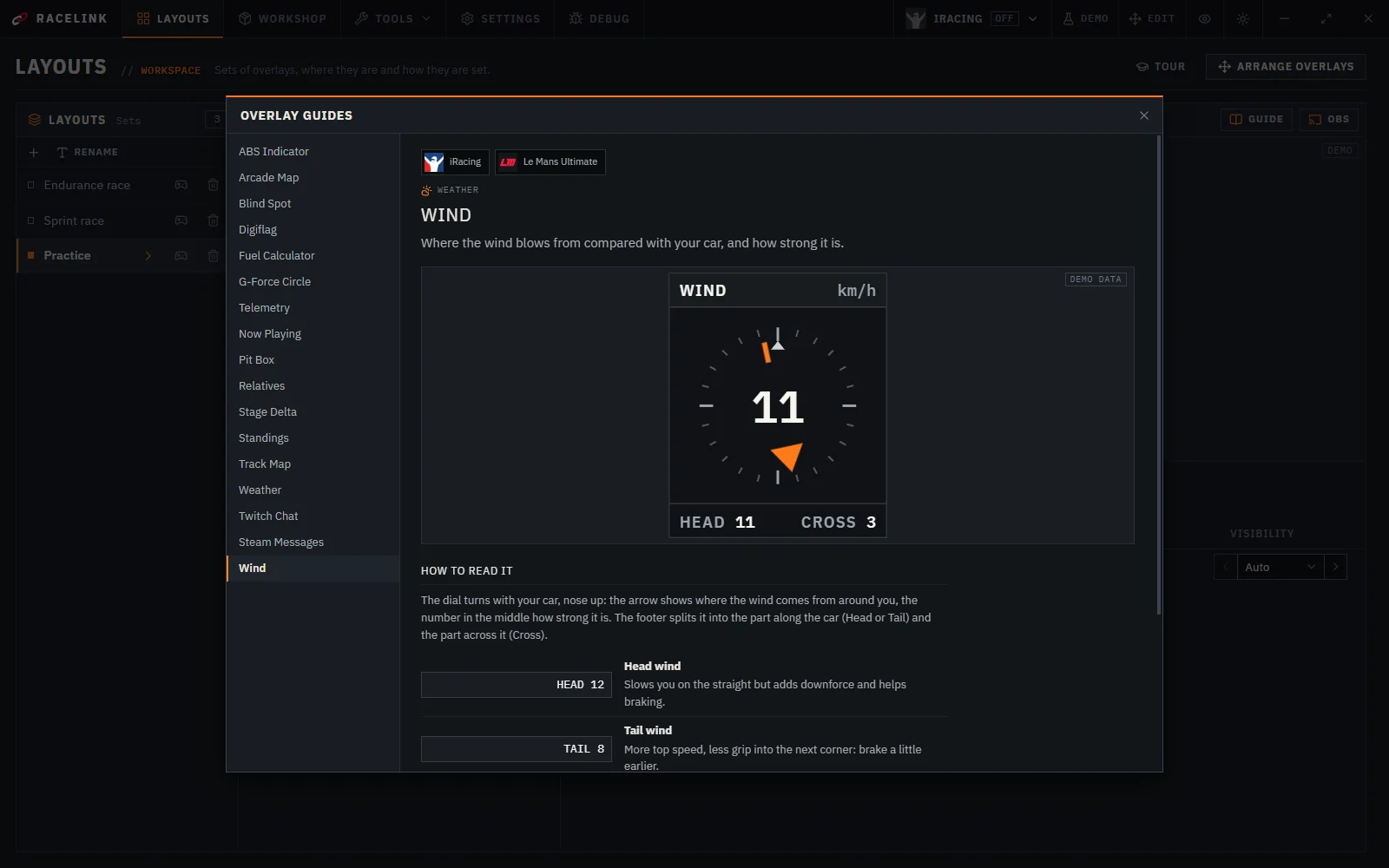
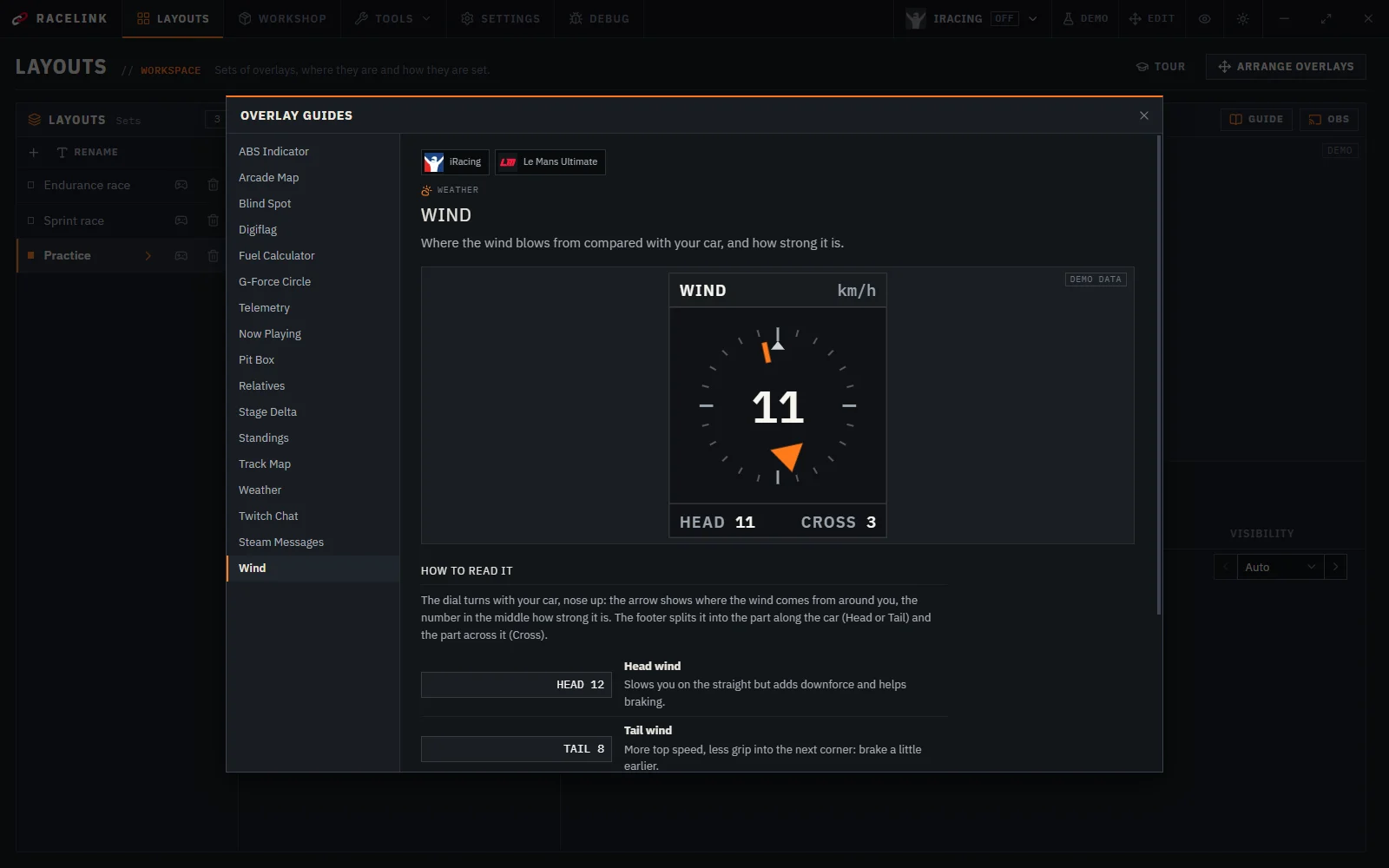
Every built-in overlay has a guide: what it shows, how to read it and why it looks the way it does, next to the overlay running with demo data. Open it with the book button in a layout’s overlay list, in the overlay settings or in Add overlay. An overlay’s guide starts with the logos of the games it works in.
 New
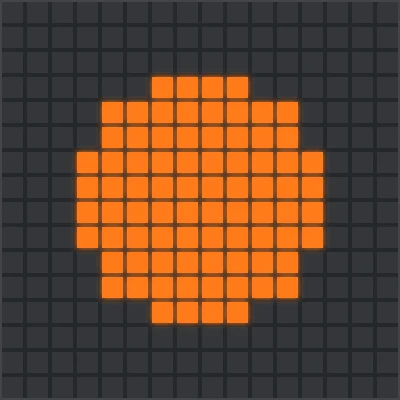
Digiflag shows a yellow the game does not: when a car within 400 m ahead stands or has spun, waved when it stands or several are in trouble. The range is in the settings.
- New
Digiflag: the race flag on a board of square lights, as one panel or two strips at the window edges. It shows the safety car, one lap to green, laps to go, halfway, debris, the warning for cutting the track, mandatory repairs, penalties and the start lights.
 New
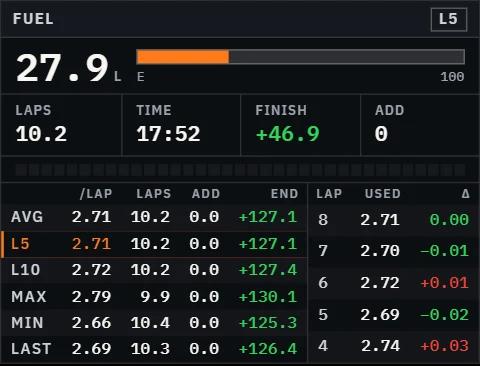
Fuel Calculator: a new overlay with the fuel in the tank, how many laps and how long it lasts, what to add at the stop to reach the finish, the pit window and the consumption of the last laps. Before the start it already plans for the whole race.
 New
Telemetry shows the slowest speed through the last corner and the fastest on the last straight, with the turn number and how much faster or slower you were than on your best lap of the session, your personal best in this car or the last lap. Pick the lap to compare with in the settings.
 New
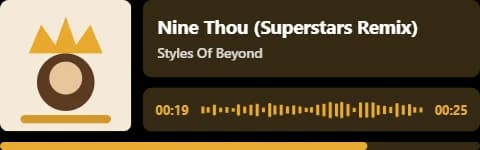
Now Playing overlay: the track that plays on the computer with its cover, artist, time, an equalizer and a progress bar, coloured after the cover. It can show only after a track change, dim or hide on pause, and take your own colours.
 New
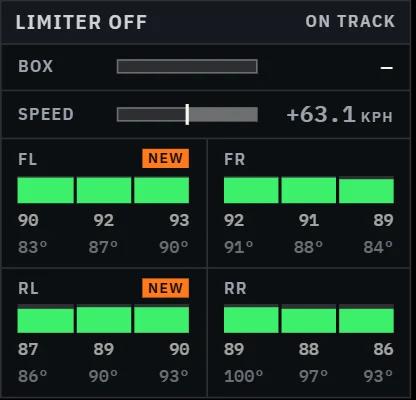
Pit Box: a new overlay for the pit lane with the limiter, your speed against the pit limit, the metres to your box and the tyres. It shows itself on the way in and hides a few seconds after you leave.
 New
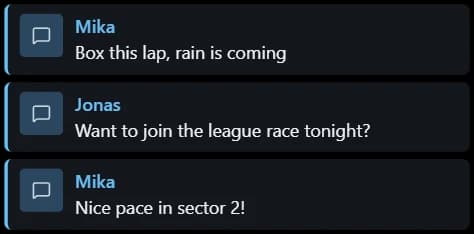
Steam Messages: a new overlay shows the private messages your Steam friends write you, on top of the game. On the OBS page it shows only who wrote, unless you allow the text.
- New
- Improved
Built-in overlays are brighter and more contrasting: vivid colours, lighter labels and clearer lines over the game.
- Improved
The demo lap delta runs a lap in 10 seconds and gains time as well as losing it, so delta overlays show green and red in previews.
- Improved
Telemetry: a yoke steering wheel in the Racelink style, now the default (the round one is still in the settings, and only it holds the gear and speed), and the trace scrolls over vertical lines and fades out at its edges.
- Improved
The Telemetry overlay shows a steering wheel and a larger gear. The wheel, trace, pedal bars, speed and gear each take their own place in any order; gear and speed can also sit inside the wheel, each in its own size.
- Improved
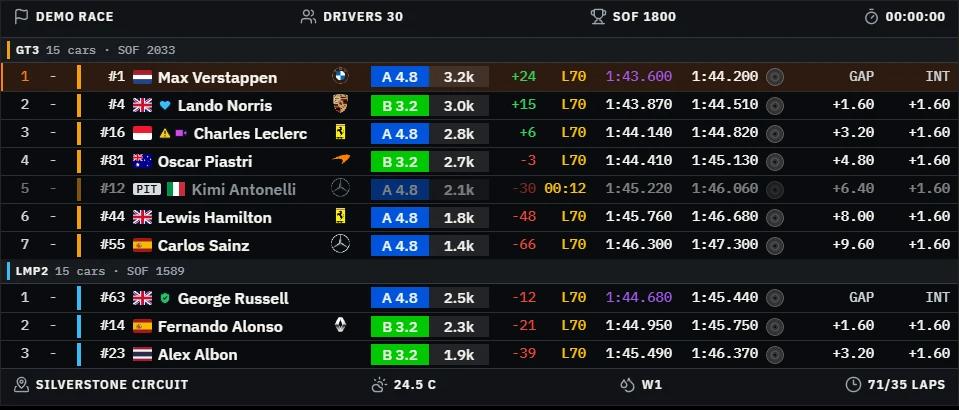
Standings and Relatives: a car on the pit road is greyed out with a PIT badge, also while it drives down the pit lane, and blue now only means a car you are lapping. The pit time follows the game’s session clock, so it stops when a session recording is paused. In Le Mans Ultimate, Standings shows the virtual energy every car has left.
- Improved
- Improved
- Improved
- Improved
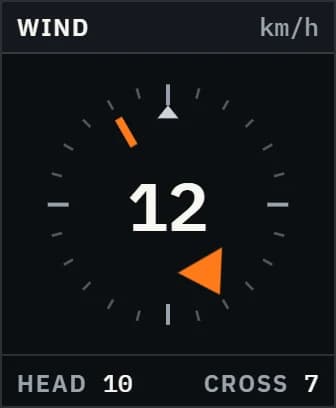
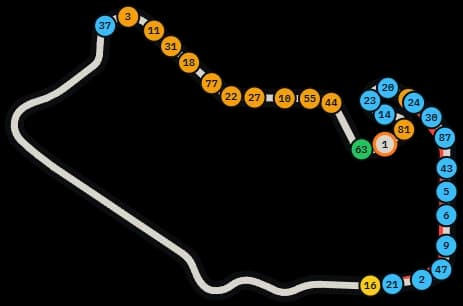
Standings, Relatives, Track Map, Weather, G-Force Circle, Blind Spot, Wind, Input Telemetry and Stage Delta have the look of the Racelink app: square plates, thin lines and clear numbers. Relatives lists cars by where they are on track, ahead above and behind below.
- Improved
Wind: hide the header or the footer, reorder or hide what they show, and make the background fully transparent.
- Fixed
Telemetry: background transparency works, the drive readout order applies, and the clutch no longer shows as pressed when it is released.
- Fixed
Standings and Relatives show the car makers’ logos in iRacing; Digiflag hides without a flag when asked to; the fuel gauge mark no longer crosses the fuel amount.
- Fixed
Standings no longer slides its rows in when it appears; Twitch Chat fills its whole window.
- Fixed
- Fixed
Track maps show the demo track in previews and in Studio whichever game is selected.
Layouts
82 New4 Improved2 Fixed
 New
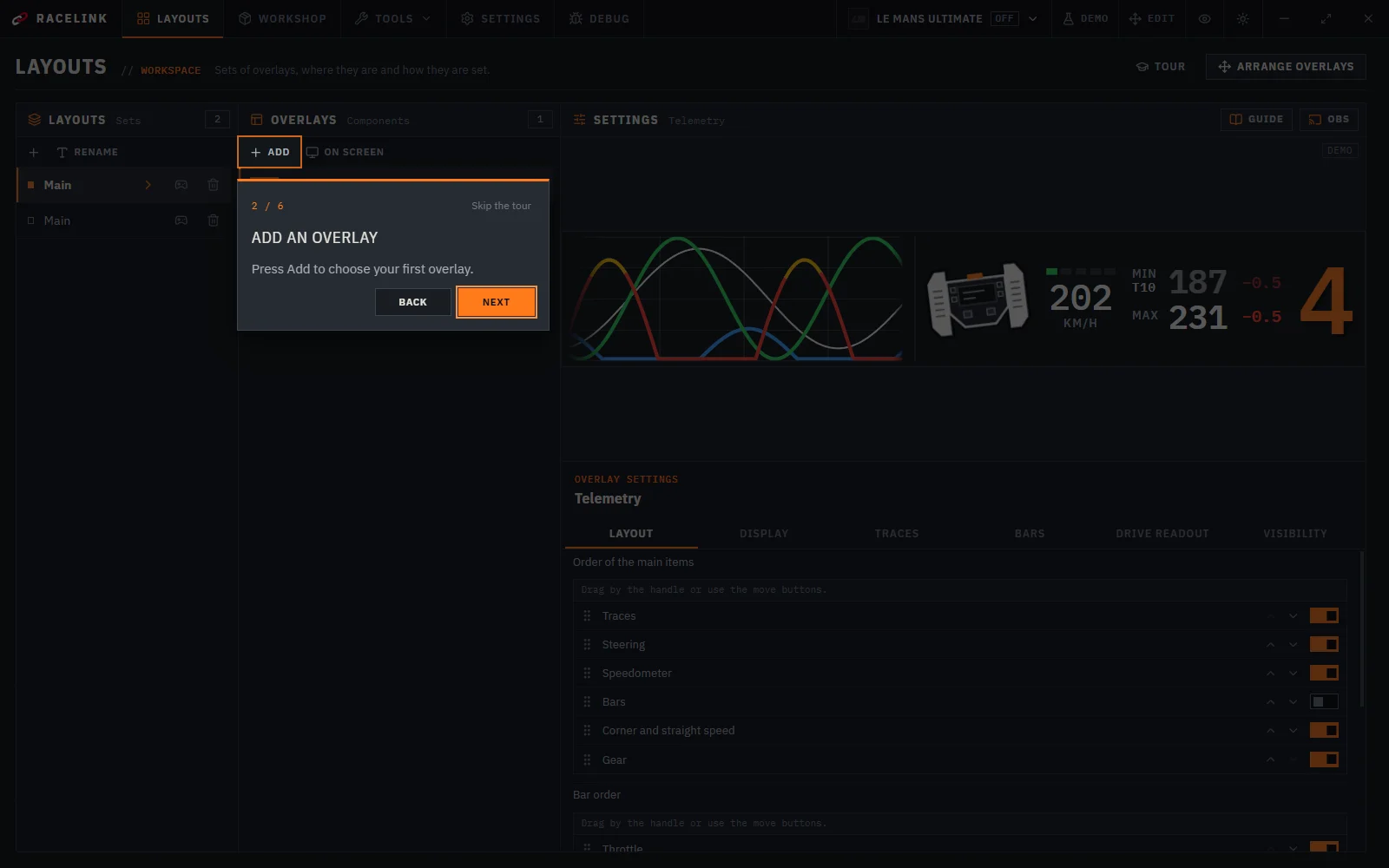
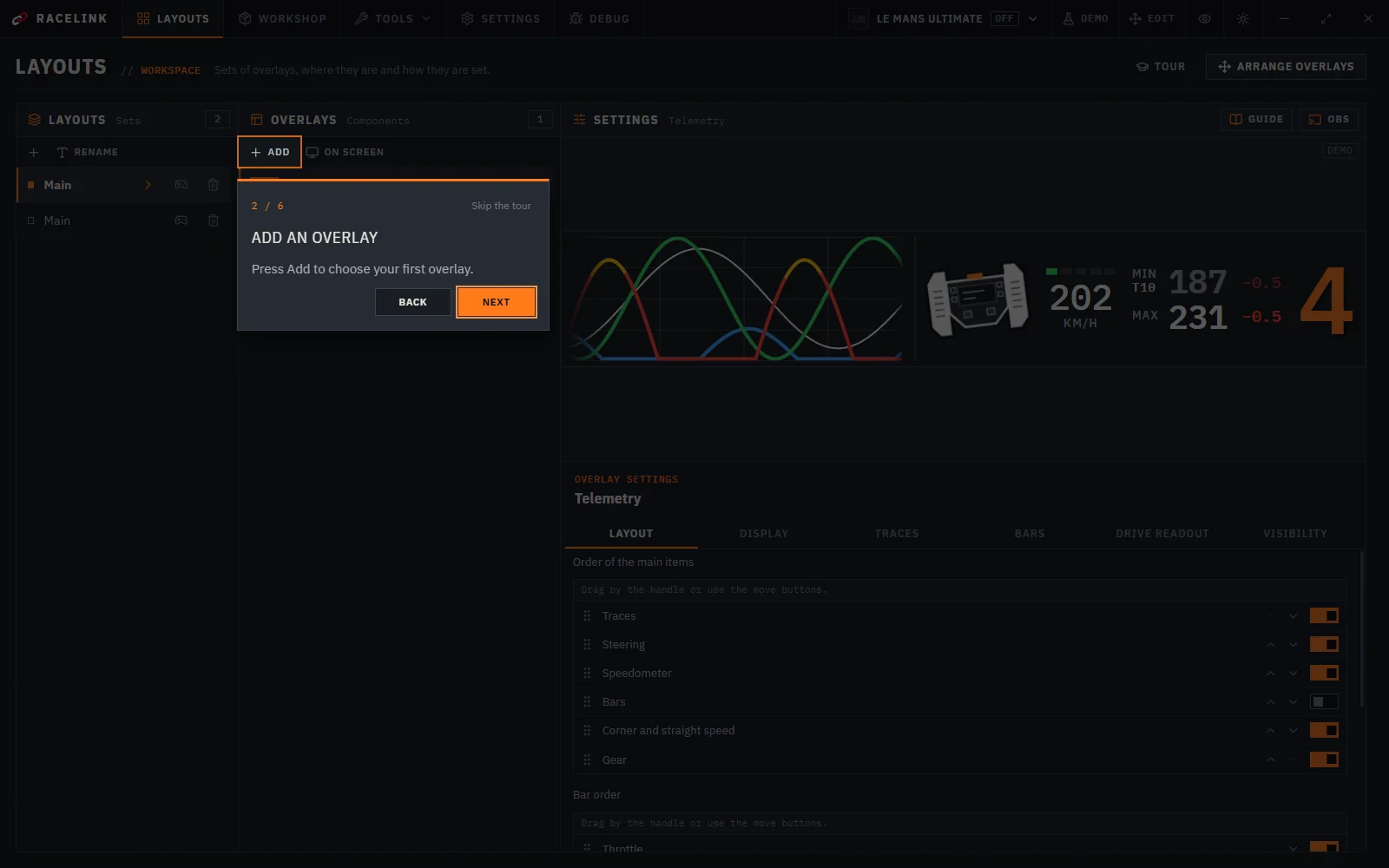
A short tour on the Layouts page shows a new player how to add the first overlay, open its settings and place it on screen. Skip it any time; the Tour button brings it back.
 New
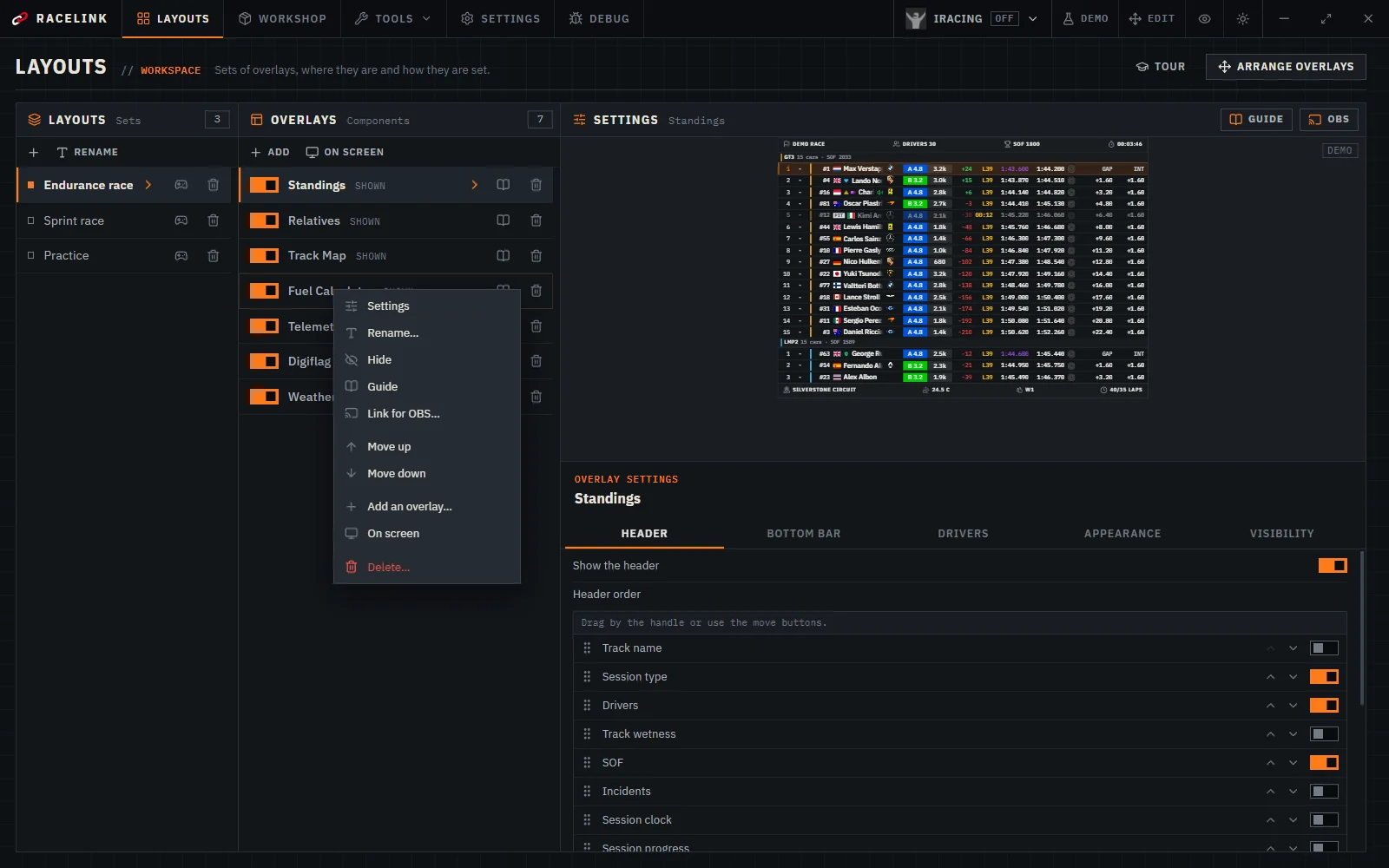
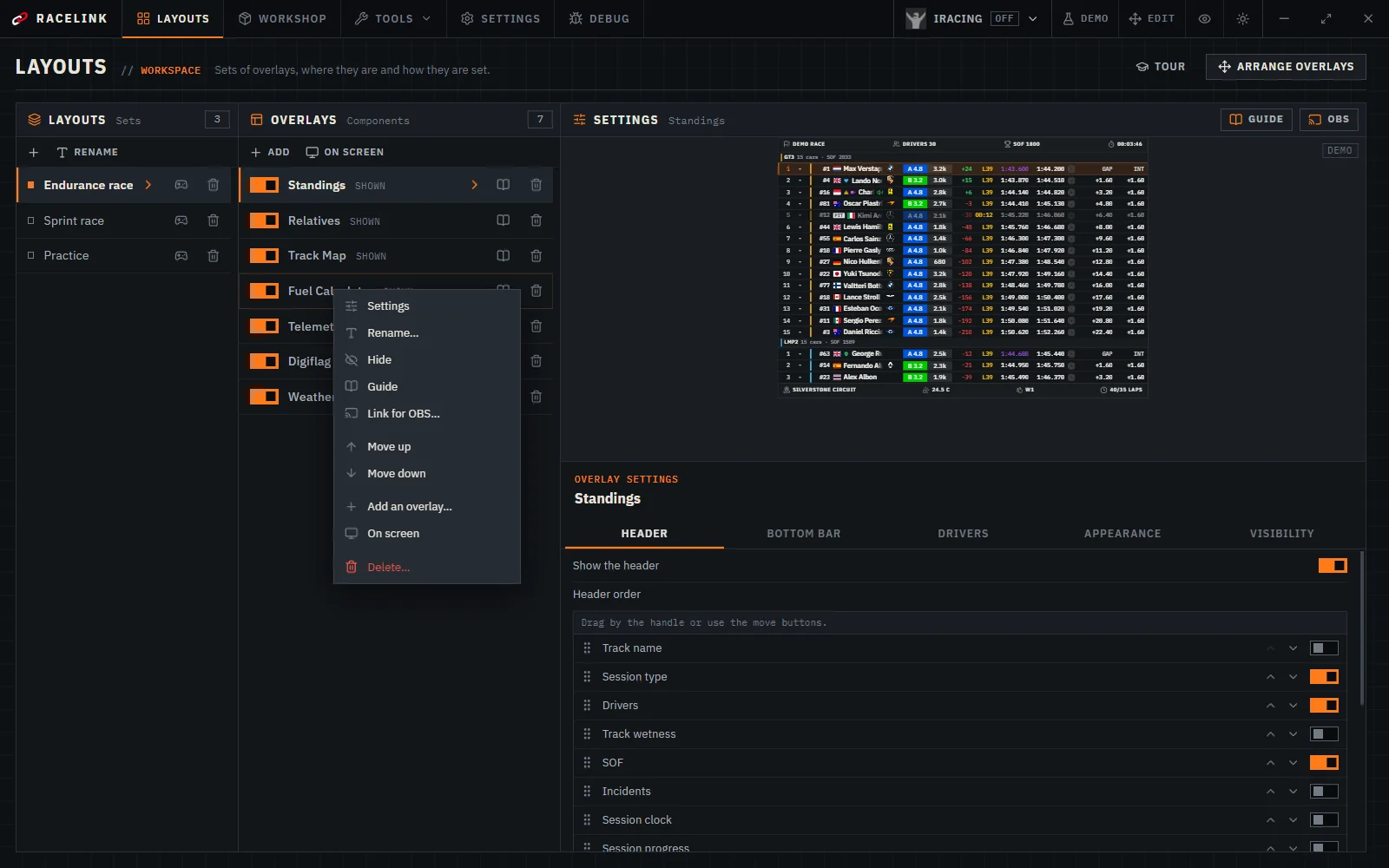
In Layouts, drag layouts and overlays to change their order, or move them with the right-click menu or Alt+↑/↓. Rename an overlay from its right-click menu, with F2 or a double click.
- Improved
When overlays should be on screen but are hidden with the eye button, the button lights up, pulses and says HIDDEN: one click brings them back.
- Improved
Lists in overlay settings have arrows on both sides: they switch to the previous or next choice without opening the list.
- Improved
The list for adding an overlay scrolls smoothly, and its pictures sit in the middle of their cards.
- Improved
In edit mode an overlay from the Workshop keeps to the sizes its author allows: an edge at its limit turns amber and gives way a little, and an overlay made for one size grows and shrinks as a whole.
- Fixed
In edit mode, resizing an overlay by its left or top edge no longer nudges the opposite edge.
- Fixed
The overlay preview next to the settings follows every change for Workshop overlays too, and every preview sits on an even dark background instead of a white box.
Games
115 New1 Improved5 Fixed
 New
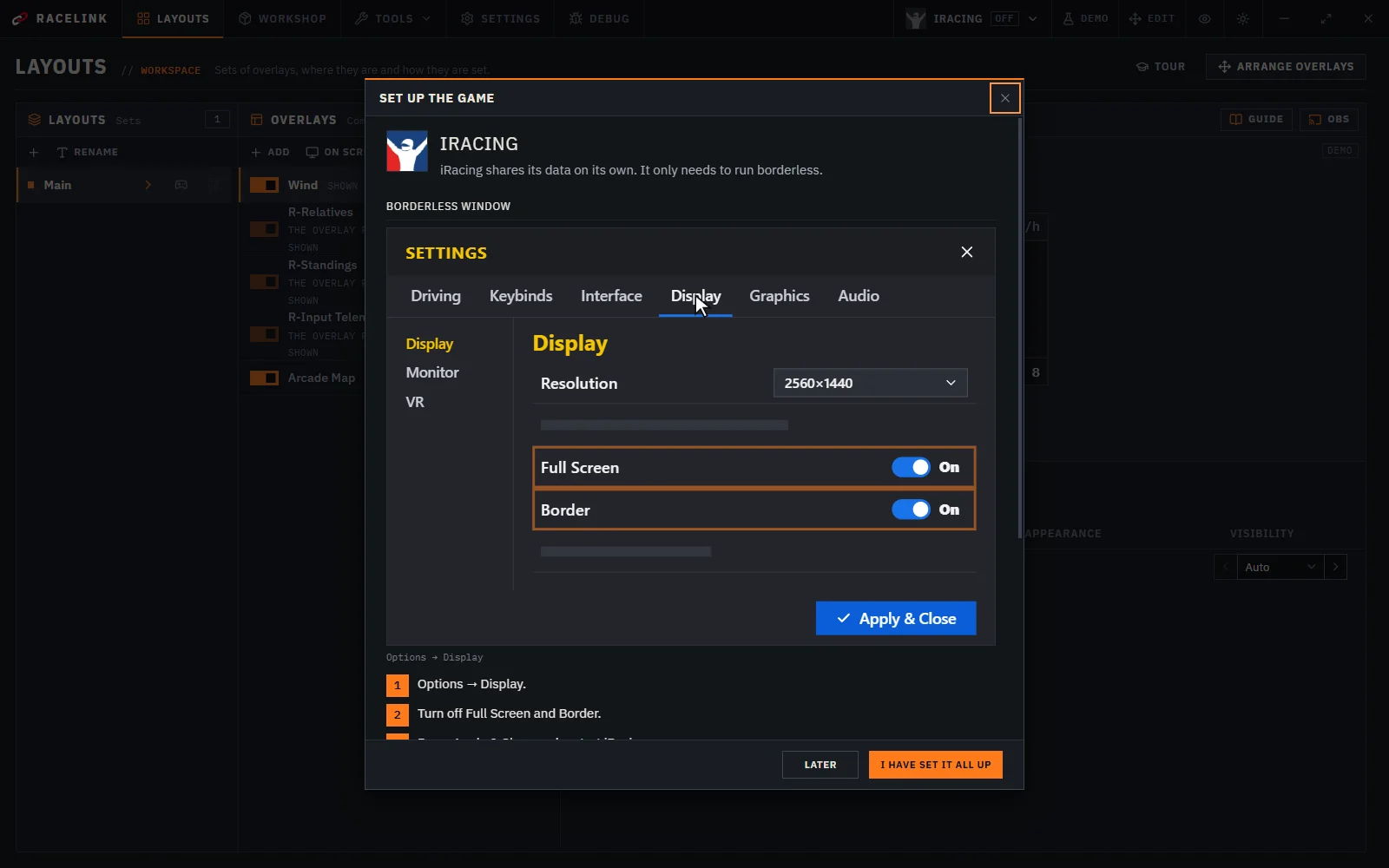
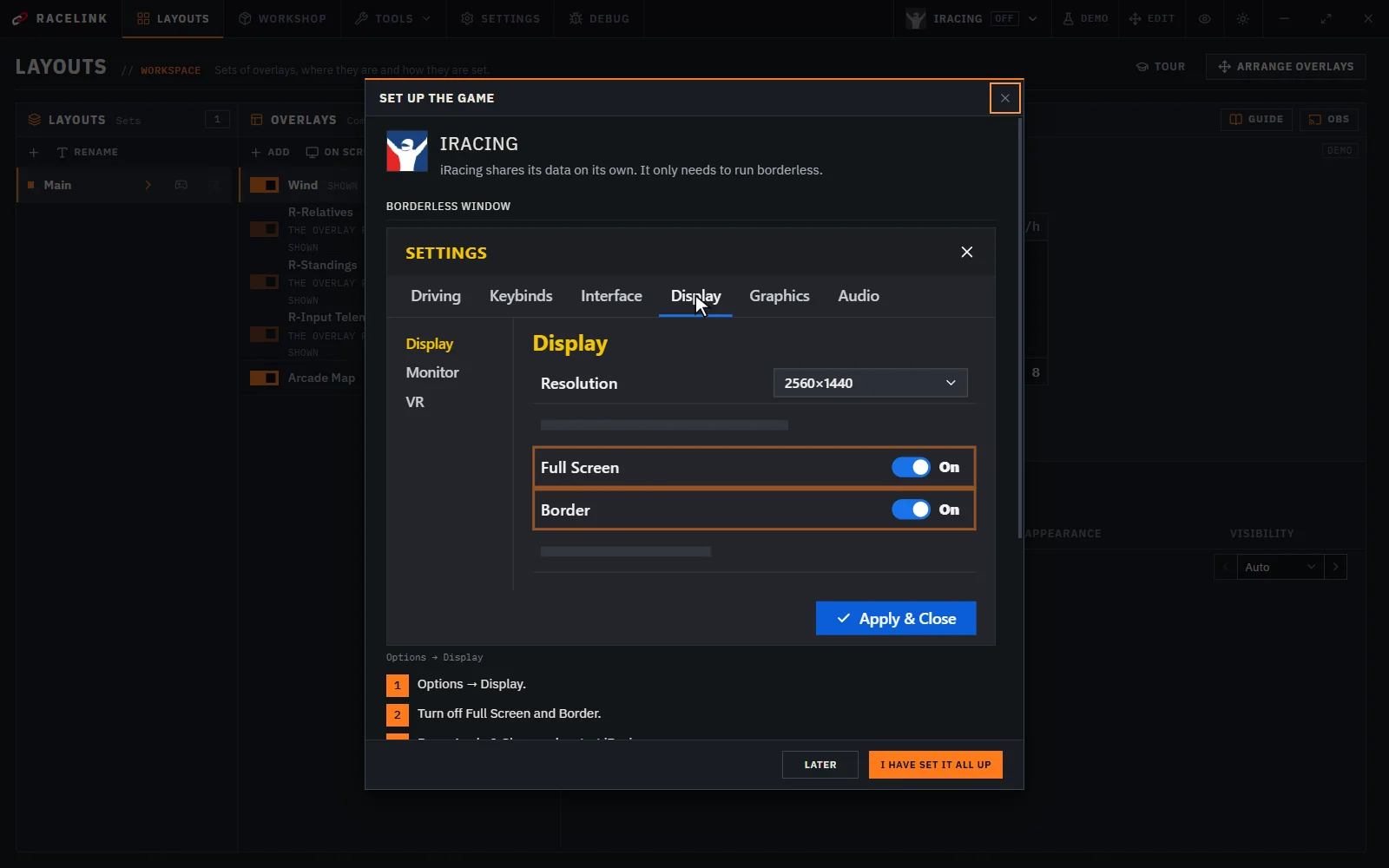
A setup guide for each game: what to change in the game so Racelink reads it and the overlays show, with live marks of what Racelink already sees. It shows the game’s own menus in motion: a cursor opens the right tab and clicks each setting into place. The guide opens by itself the first time you launch the game and is always in the game menu.
- New
Assetto Corsa EVO: overlays show your car — speed, gears, inputs, steering wheel, tyres, brakes, fuel, lap times, delta, position and flags. The game shares no data on the other cars, so relative and standings boards stay empty there.
 Assetto Corsa EVO
- New
Assetto Corsa EVO now fills the ABS Indicator, Digiflag, G-Force Circle and Telemetry overlays. The clutch of EVO now reads as a pedal, as in the other games.
- Assetto Corsa EVO
- ABS Indicator
- Digiflag
- G-Force Circle
- Telemetry
- New
- New
Le Mans Ultimate: the Standings, Relatives and Blind Spot overlays now work there too.
 Le Mans Ultimate
- Standings
- Relatives
- Blind Spot
- Improved
The game is shown as LIVE as soon as it starts, in its menus too; overlays still wait for a session.
- Fixed
iRacing: Digiflag shows yellows, debris, green and the start lights; overlays hide on the session screen as they do in the garage; Relatives no longer swaps the cars ahead and behind at the line; Standings shows the interval behind a car that disconnected; the wind arrow turns the right way; the delta to your best lap and the corner speed comparison work; before the start the fuel plan counts the whole race.
 iRacing

 Assetto Corsa
- Fixed
Le Mans Ultimate: lap times, the personal best and the delta to it are right again; laps were saved with only their milliseconds.
- Le Mans Ultimate
- Fixed
Le Mans Ultimate: overlays get the car model of every car, so car brand logos show for the whole field, not only for a few teams.
- Le Mans Ultimate
- Fixed
Le Mans Ultimate: braking and acceleration G read the right way round, tyre slip angles are correct, the lap delta is the game’s own, and overlays now get the ABS and TC settings, anti-roll bars, brake migration, air temperature, rain, pit stops, grid positions, retirements and blue flags.
- Le Mans Ultimate
- Fixed
Le Mans Ultimate: relative gaps now match the game’s own relative, cars show their real numbers and teams, positions count within the class, the lap counter no longer lags one lap behind, and cars on the pit lane before the line are placed correctly. Race standings show the game’s gaps to the leader and the car ahead. The steering wheel of input overlays turns, and overlays hide in the game’s menus.
- Le Mans Ultimate
Tools
22 New
 New
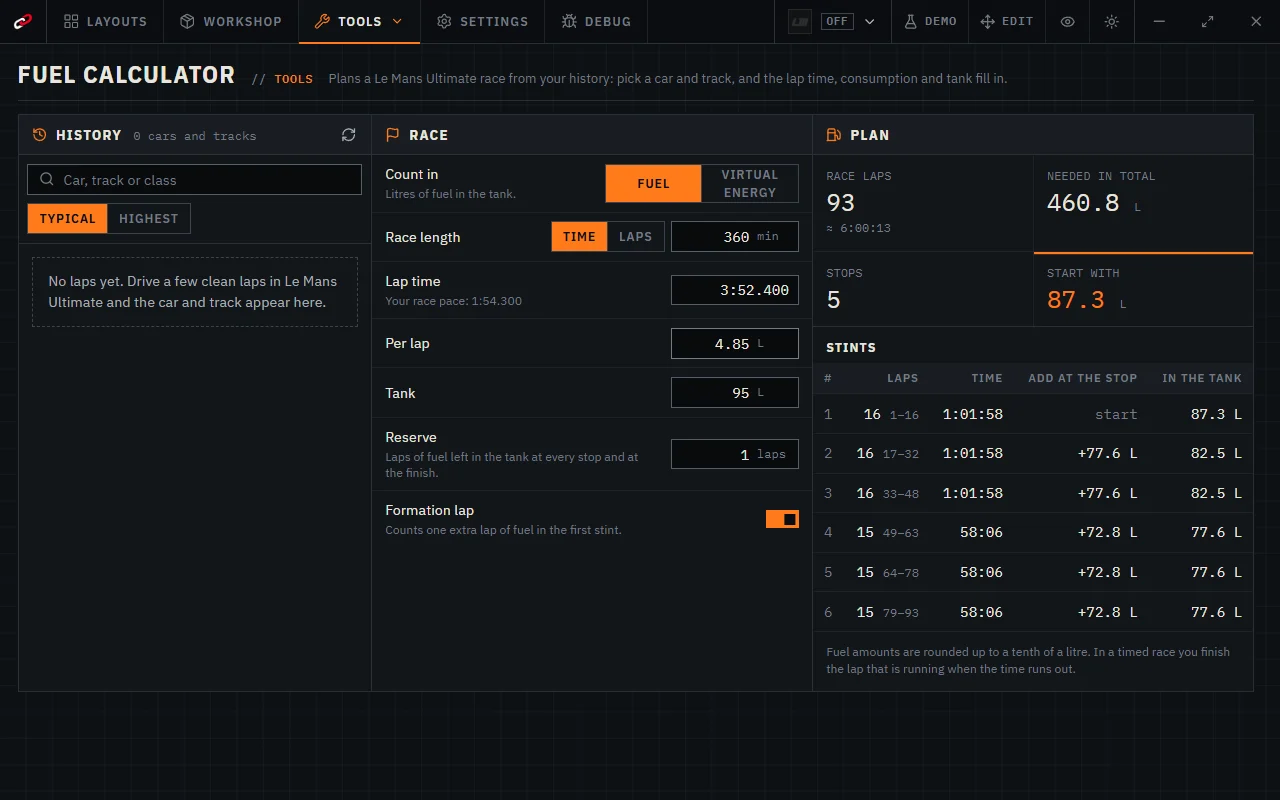
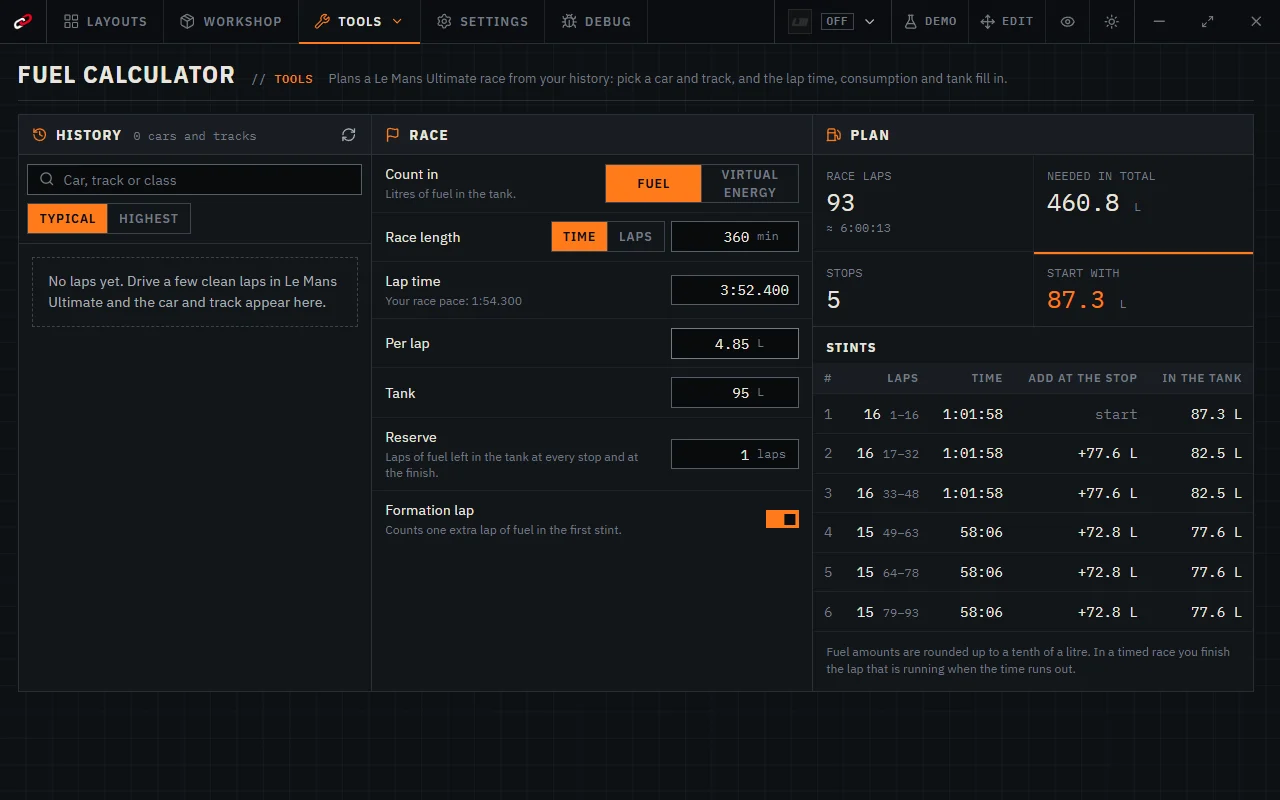
Le Mans Ultimate: Tools → Fuel calculator plans a race in fuel or virtual energy: race laps, stops, what to start with and what to add at each stop. Pick a car and track from your history and the lap time, fuel and virtual energy per lap and the tank fill in by themselves; Racelink now also remembers virtual energy per lap and each car’s tank. Consumption from your history is the typical lap — the median, with laps far from it (saving fuel, a safety car, an incident) left out — from one session (practice, qualifying, race) or all of them.
- Le Mans Ultimate
- New
Le Mans Ultimate: Tools → Lap log shows every session lap by lap — fuel, virtual energy, lap time, tyre temperatures across the tread, pressures, wear, brakes, ride height and your in-car settings — on a chart and in a table, so you can tell whether a setup change made things better or worse.
- Le Mans Ultimate
Driver Tags
22 Improved
 Improved
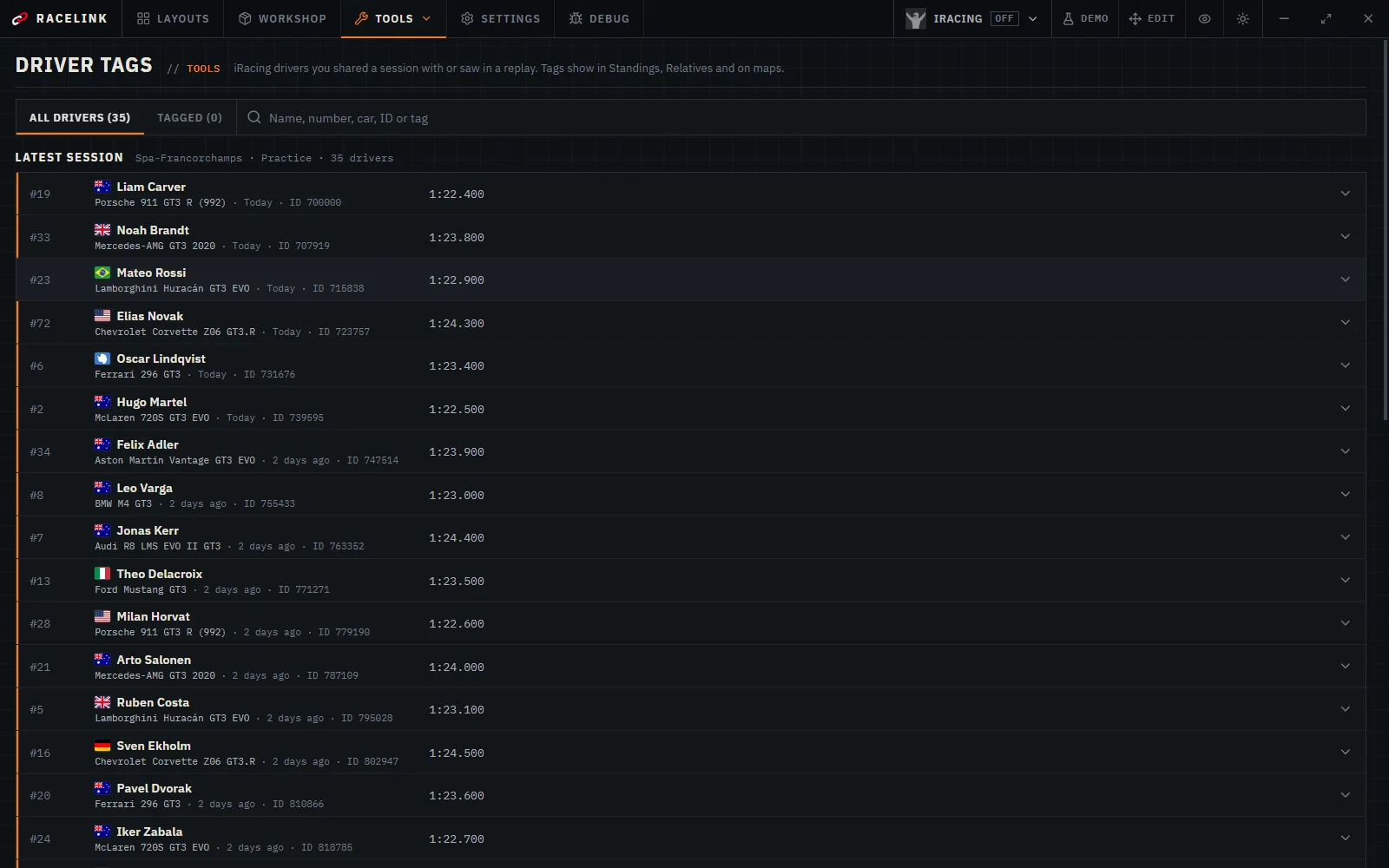
Driver Tags shows each driver’s flag, the car and the best lap of their last session, and searches by car. Earlier drivers are folded until you open them or search for one.
- Improved
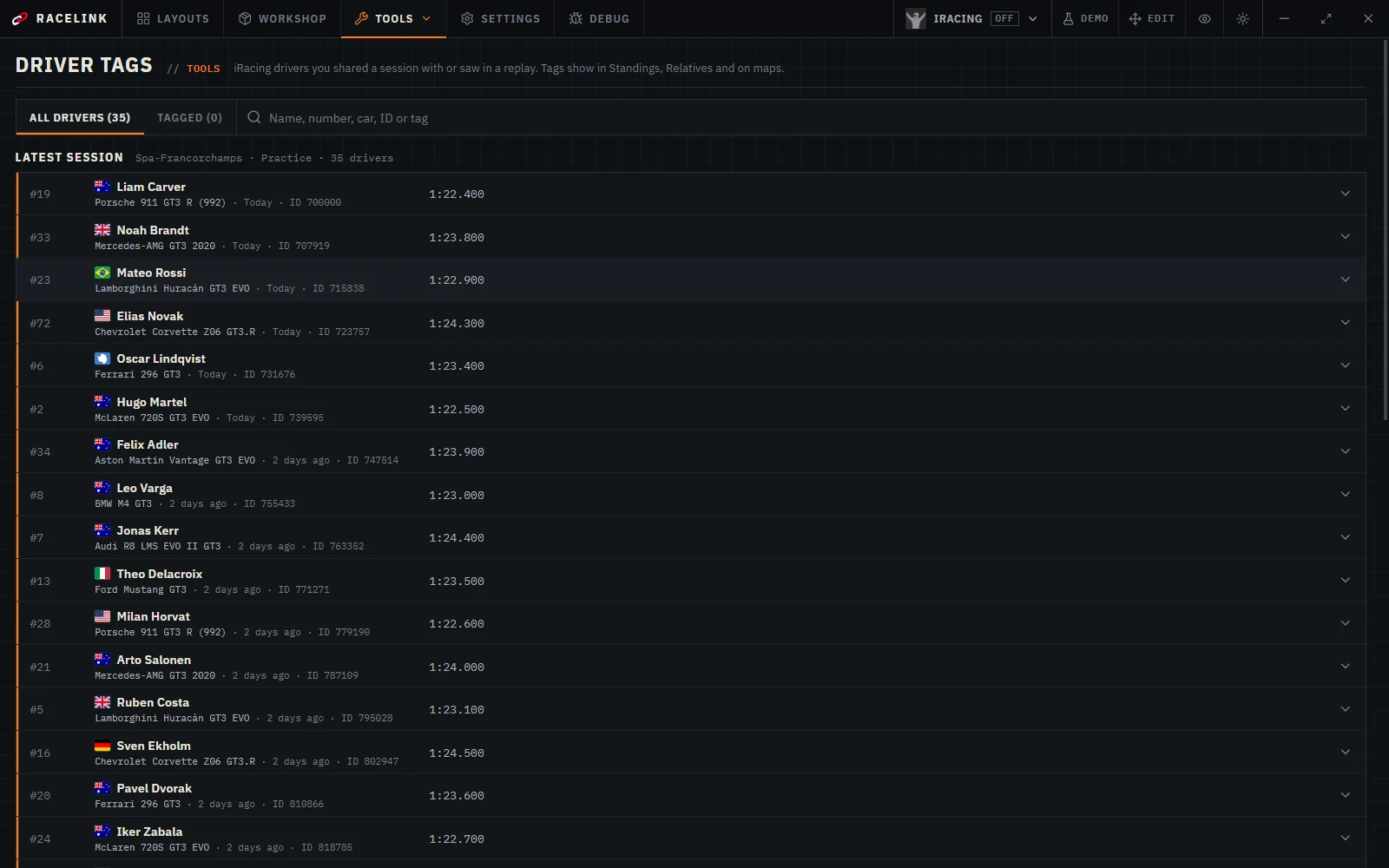
Privacy: drivers without a tag are forgotten 90 days after you last met them, and the Tags page can stop remembering drivers or forget them at once. The privacy policy is a click away in Settings.
Settings
73 New4 Improved
 New
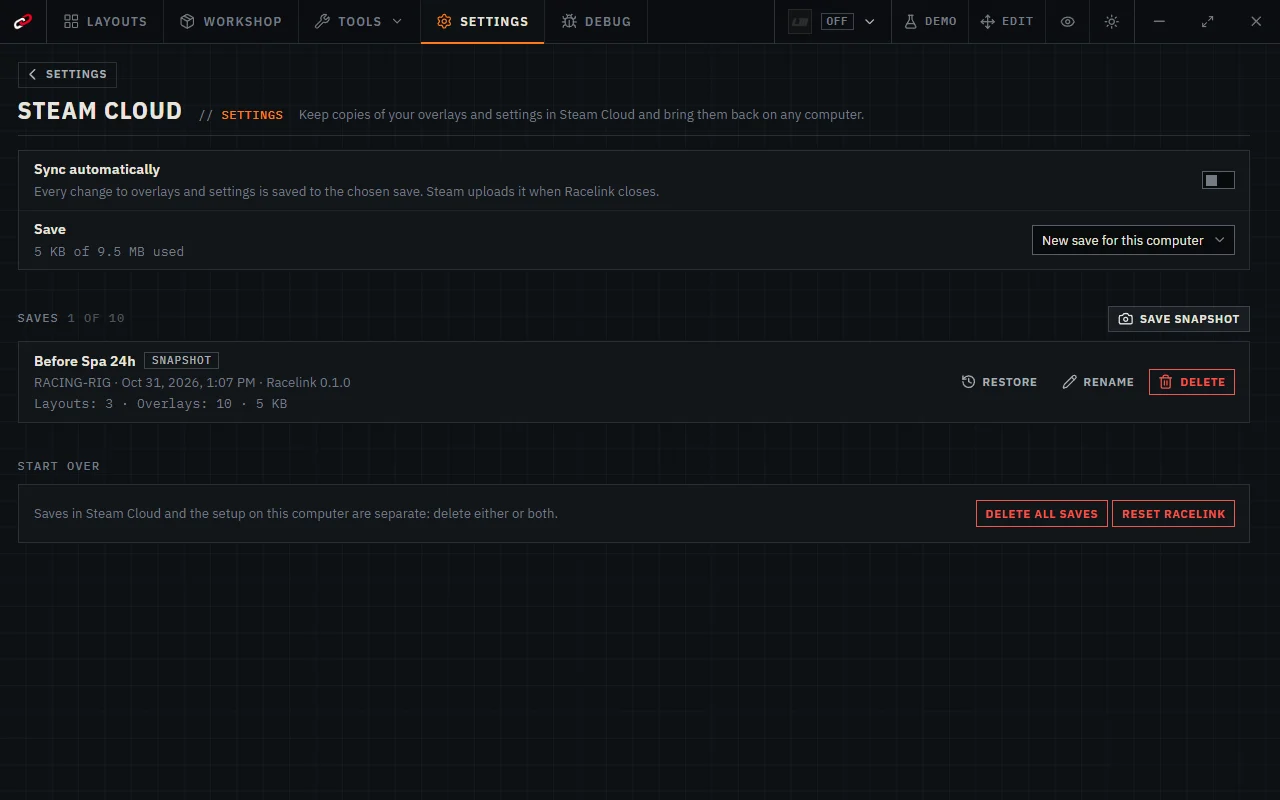
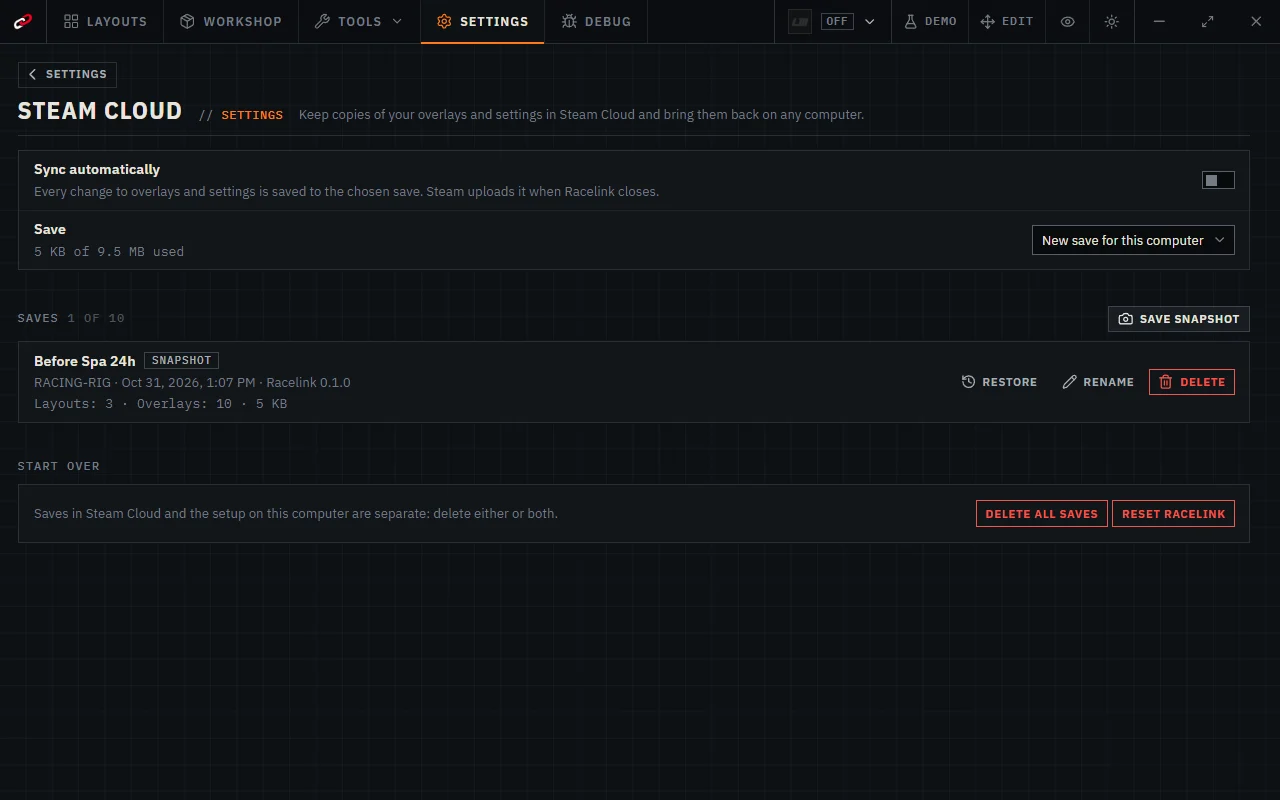
Steam Cloud: keep your overlays, layouts and settings in Steam Cloud and bring them back on another computer or after a reinstall. Turn on syncing in Settings → Steam Cloud, or save named snapshots. Nothing is loaded from the cloud until you choose a save; overlays from the Workshop in it are downloaded by themselves, and the last restore can be undone.
 New
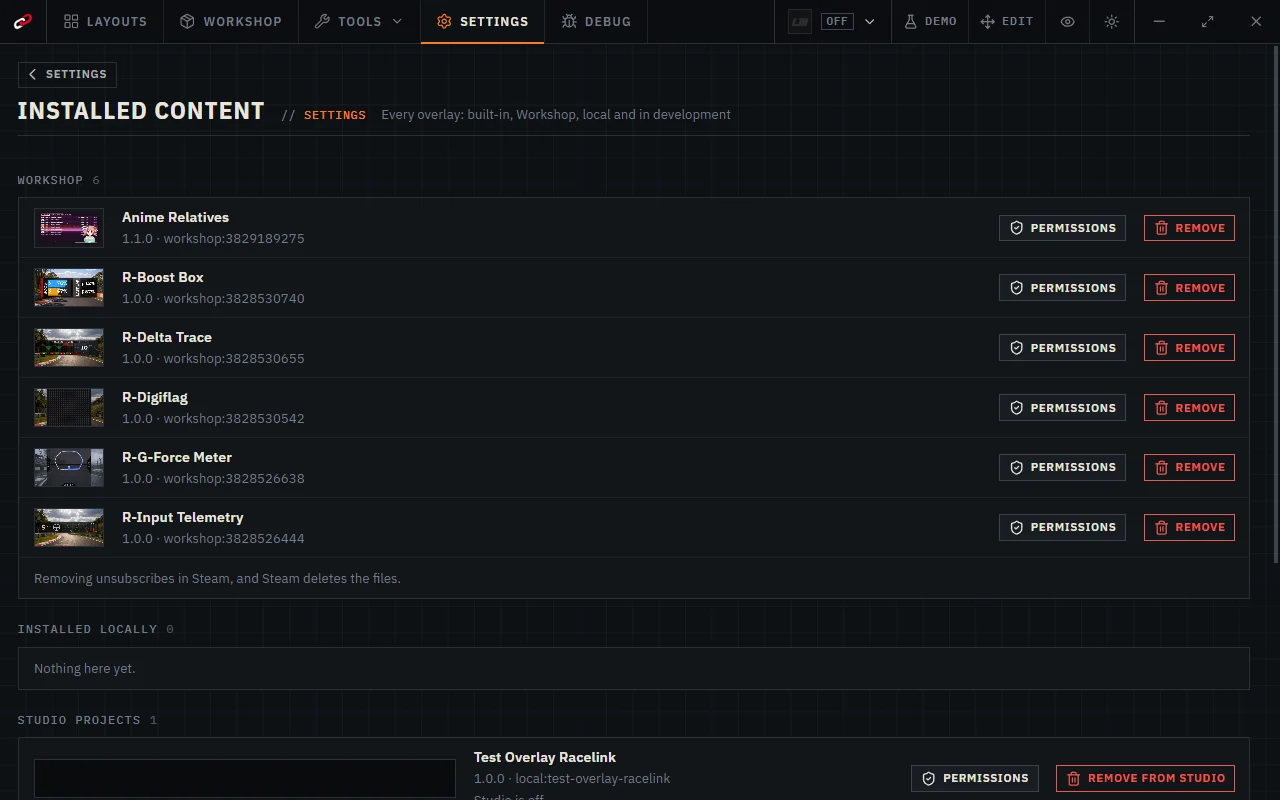
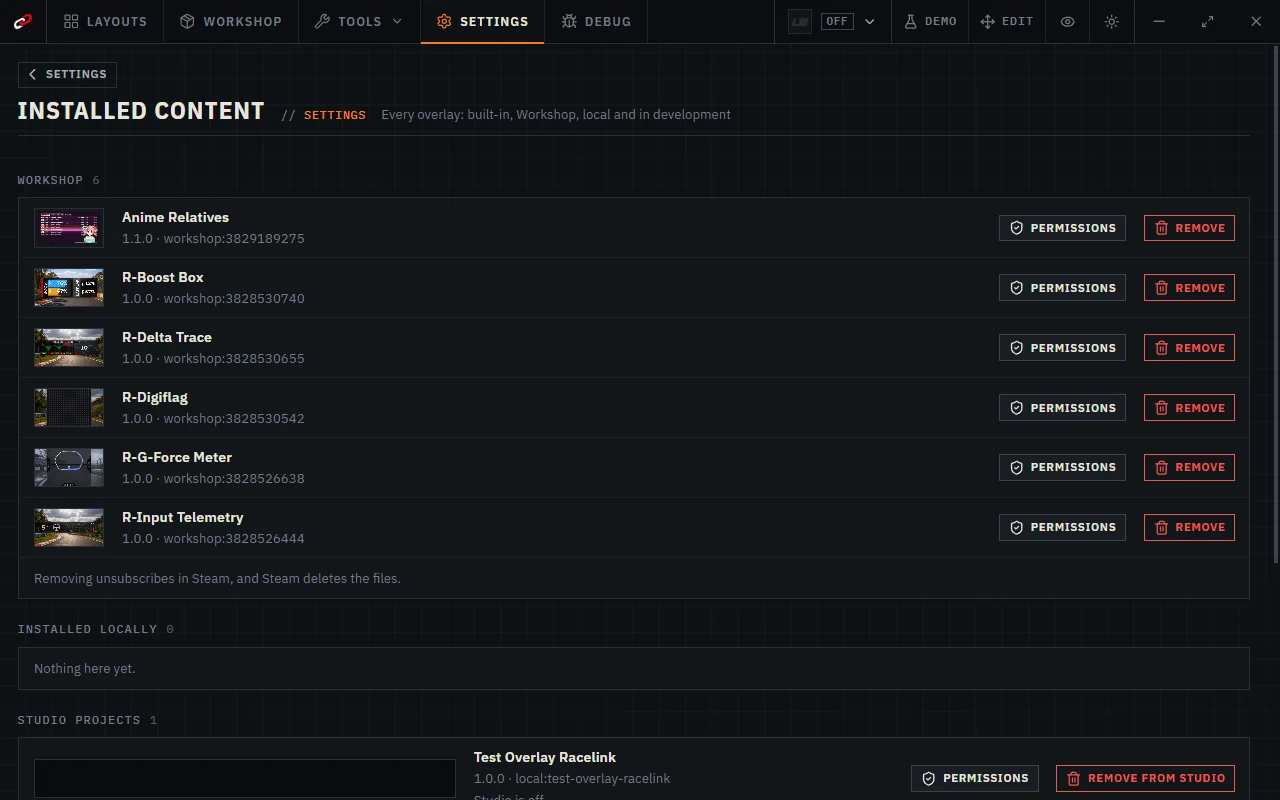
Settings → Installed content lists every overlay: built-in, from the Workshop, installed locally, Studio projects and in development. Overlays you added can be removed from there.
 Improved
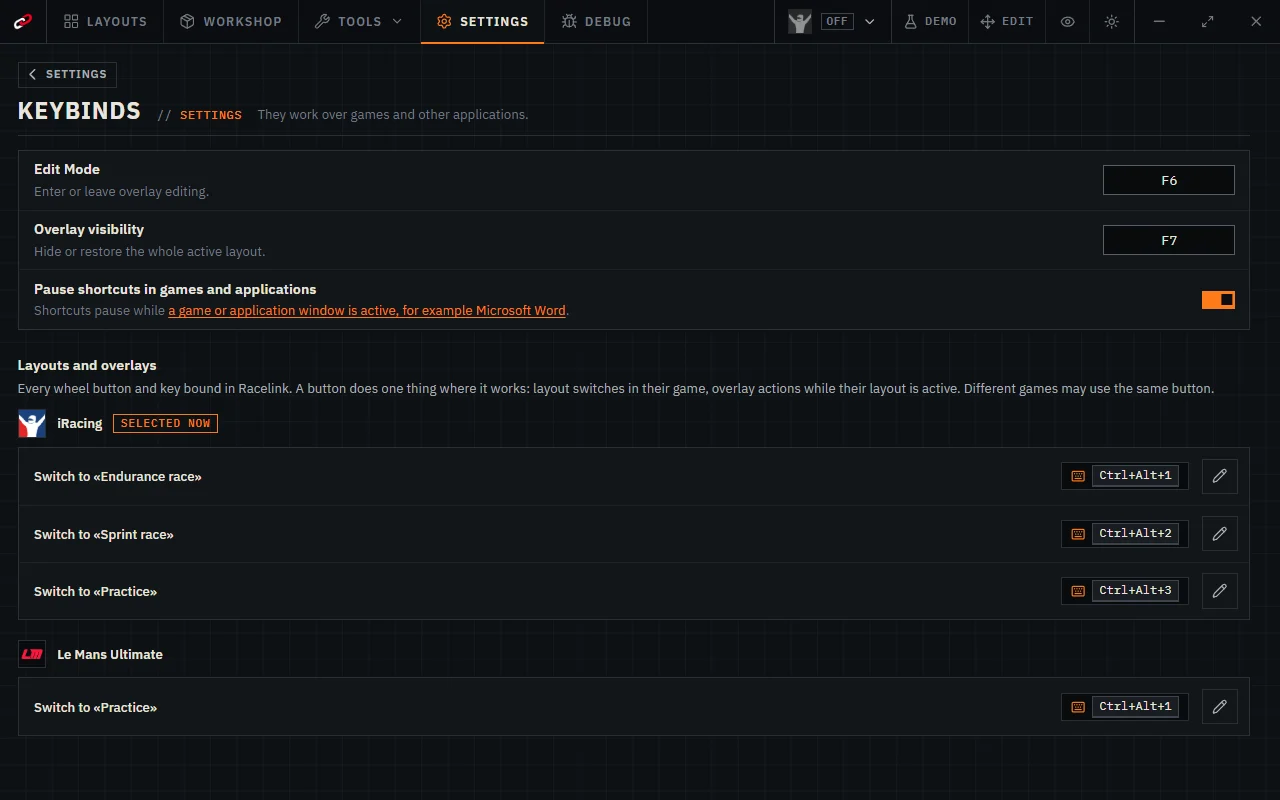
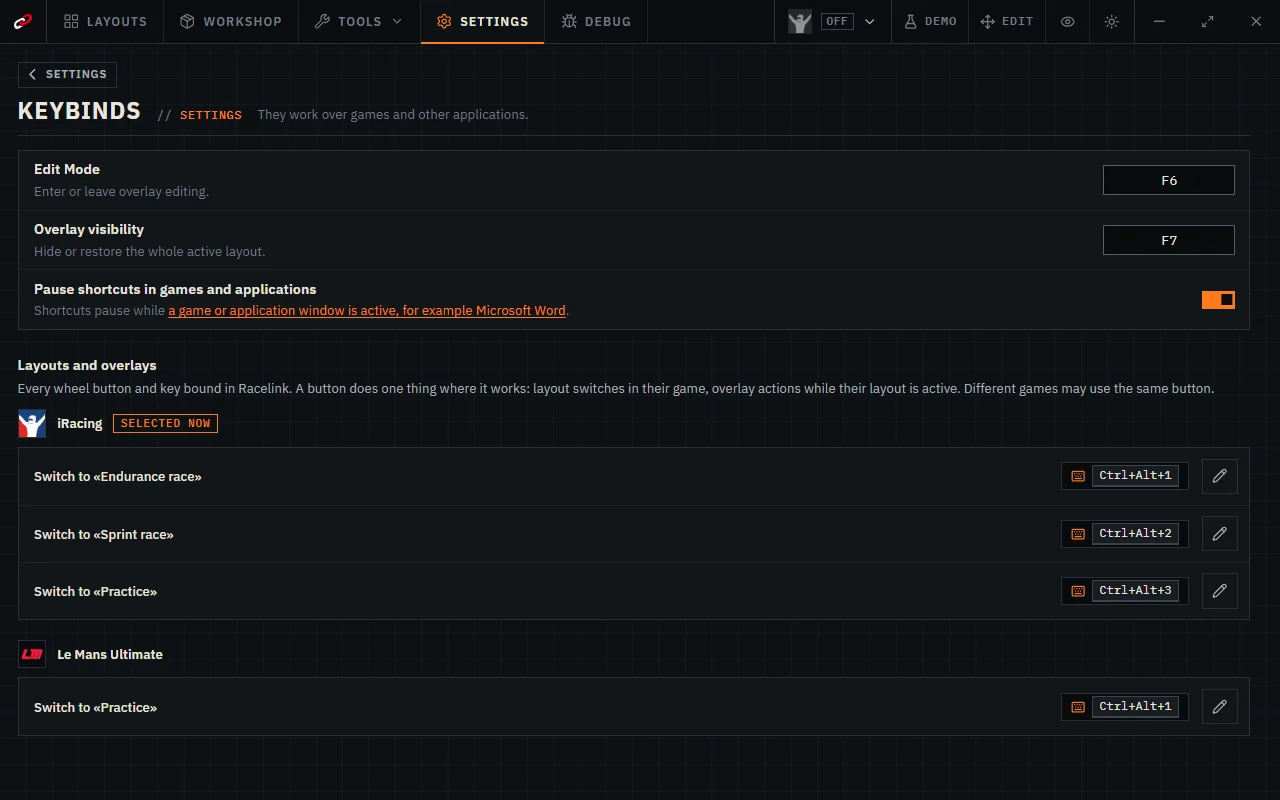
Settings → Keybinds brings the app’s shortcuts and every bound wheel button and key together in one place, by game. A button does one thing where it works: binding one that is in use asks before moving it, and different games may still use the same button. Overlays can offer actions, such as showing or hiding them, which you bind in the first tab of their settings; they work in the overlay and on its OBS pages.
- New
Settings → Session recordings records your races into compact files. Export a recording as one file to share it, or play it back so your overlays show the session again: while it plays, a strip at the bottom of the window holds its controls. Up to 1.5 GB is kept by default.
- Improved
Inside a Settings section, clicking Settings in the title bar goes back to the list of sections.
- Improved
Settings search understands every language: type “language” with the interface in Russian and still find it. The section cards are now all the same height.
- Improved
Settings → Integrations says plainly that the shared track is the music playing on the computer, not the race track.
Workshop
42 New1 Improved1 Fixed
 New
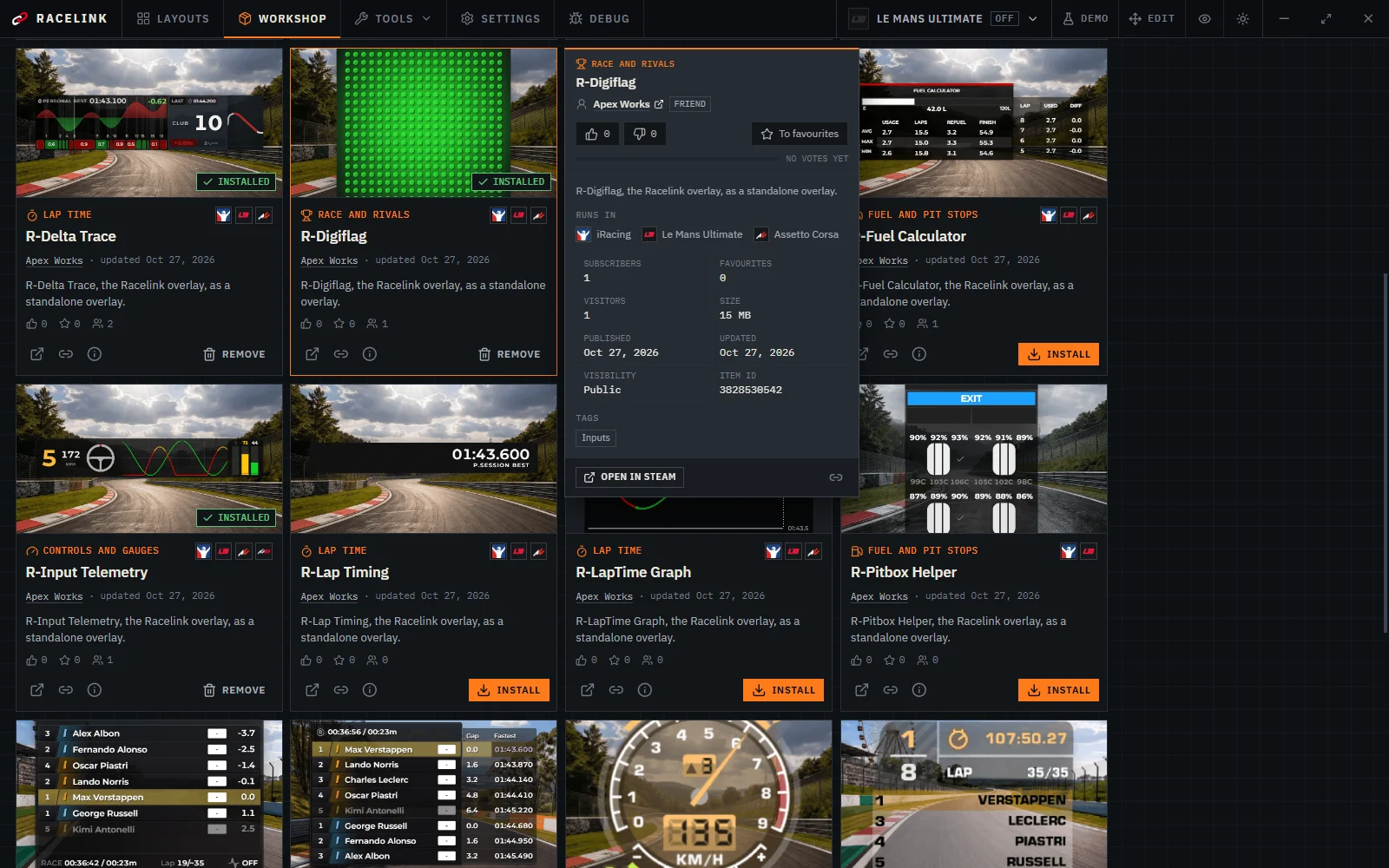
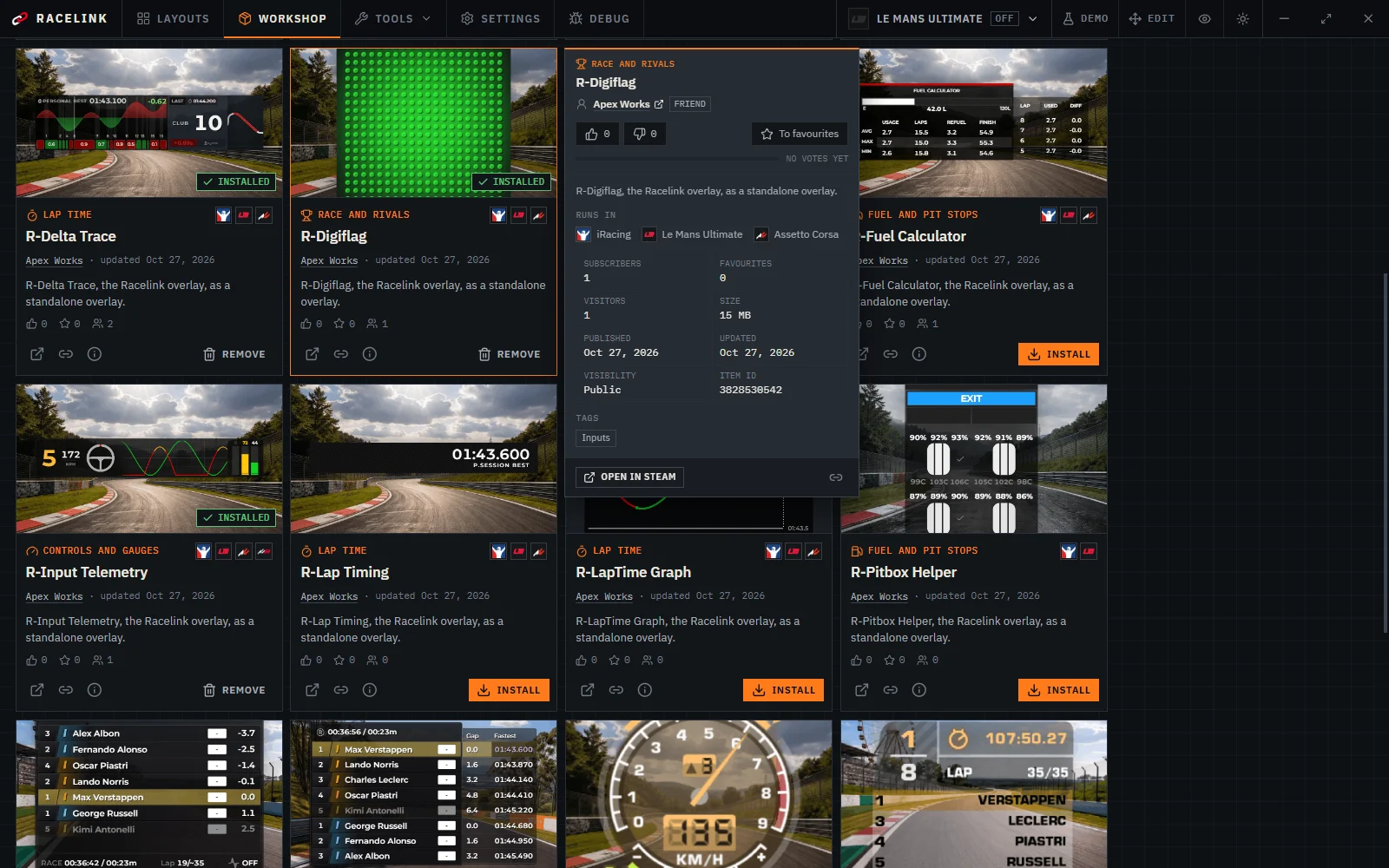
Workshop cards show the games an overlay runs in and who made it, and the catalogue filters by game. Resting the pointer on a card opens its details: the full description, counts, a link to the author’s Steam profile, votes and favourites. Favourites have their own section.
- New
Permissions for community overlays: an overlay from the Workshop or a folder asks before it sees what your computer plays, reaches the internet or reads your Steam messages. Allow each one separately, or none, and change it any time in the overlay’s menu.
- Improved
Add overlay lists Workshop overlays you subscribed to while Steam still downloads them, marked as not downloaded yet; they can be added once they arrive.
- Fixed
Installing an overlay from the Workshop no longer restarts the overlays already on screen: they keep their state, and a music overlay does not show the same track again.
Studio
42 New1 Improved1 Fixed
- New
Studio, the tools for making your own overlays, is turned on in Settings, For developers. Until then it stays off.
- New
In Studio, Permissions has a Preview button: it shows the window users will see when your overlay asks for them.
- Improved
Studio: a Workshop preview can be shot over your own photo, and the overlay stays in the middle of it.
- Fixed
Studio previews and Workshop captures play the demo of a game the overlay supports, so lap and fuel overlays move there as they do on a layout.
App
72 New3 Improved2 Fixed
- New
Racelink lives in the system tray: its menu switches the game and the layout, shows or hides the overlays and quits the app. Starting Racelink again brings up the window that is already open instead of a second copy.
- New
Racelink speaks Polish: pick Polski in Settings → Appearance.
- Improved
Racelink has its own right-click menu: layouts, overlays, the title bar and Studio offer their actions there, and text can still be copied and pasted. In Studio, overlay settings, groups and pages are reordered by dragging, new ones are added from labelled buttons, from a row or from a line between rows, and API data shows every value a field can take and says «Copied» where you clicked.
- Improved
Tabs that do not fit show arrows at the edges; drop-down lists keep the width of their longest option, so they no longer jump when you pick another one.
- Improved
Racelink starts in the language chosen for it in Steam and follows it when you change it there. A language picked in Racelink settings stays until the Steam language changes.
- Fixed
Racelink no longer freezes when a shortcut is pressed while switching between the game and another window.
- Fixed
Dragging a picture inside Racelink no longer offers to install an overlay; the drop frame appears only for a folder or a zip archive.